
I’m so excited to be creating Boom Cards™ to support distance learning instruction!
Distance learning has become an essential method of teaching, especially in recent times. As educators adapt to these changes, tools like Boom Cards™ offer innovative ways to engage students remotely. In this post, we’ll explore how to effectively utilize Boom Cards for distance learning, ensuring students remain active participants in their education.
Understanding the technology and resources available is crucial for educators. Boom Cards offer unique features that can enhance learning experiences. For example, they not only provide instant feedback but also allow teachers to track student progress over time, making it easier to identify areas where individual students may need additional support.
To provide a clearer distinction, let’s dive deeper into the functionalities of each type of resource mentioned. Interactive PDFs serve a specific purpose for offline use, but they lack the real-time capabilities that Boom Cards possess. In contrast, Boom Cards not only allow for self-checking but also integrate audio features that cater to auditory learners, providing a multi-sensory experience.
Since boom cards are new to most of us, this blog post will focus on these, but know I will be working to convert all of my Boom Cards™ into Interactive PDFs and Google Slides soon!
These innovative task cards can be utilized in various subjects, from math to language arts. For instance, a teacher might create a deck of Boom Cards that focuses on reading comprehension, where students read a passage and then answer questions based on that text. The self-checking aspect ensures that they receive immediate feedback, reinforcing learning in real-time.
Boom Cards are self checking task cards like the interactive PDF but are hosted on the Boom Learning℠ site. They also have sound added to the correct answer or direction reading.
In addition to its compatibility with various devices, so many educators appreciate the flexibility of Boom Cards. They can be seamlessly integrated into different learning management systems, making it easy for instructors to assign tasks and monitor student performance. This adaptability is a game-changer in the current landscape of education.
A student must be connected to the Internet to use Boom Cards. Boom Cards play on internet browsers (Chrome, Safari, or Firefox). And applications are available for Android, iPads, iPhones, and Kindle Fires.
Boom Cards are compatible with Google Classroom™, SeeSaw, and other similar online platforms that permit you to assign by URL. You can even import your google classroom to make it easier!
Creating an account is just the beginning. Once registered, educators can explore the vast library of existing Boom Cards, or they can create their own tailored specifically to their students’ needs. This customization fosters a sense of ownership over the learning process, motivating students to engage more deeply with the material.
Moreover, the premium account option opens up a world of possibilities for educators. Not only can they track student progress effectively, but they can also utilize data analytics to drive instructional decisions. For example, if a student consistently struggles with a particular type of question, the teacher can provide targeted interventions to help them succeed.
When it comes to integration with Google Classroom, the process is straightforward. By importing classes, teachers can streamline assigning tasks. This not only saves time but also ensures students have easy access to their assignments, thus fostering a more organized learning environment.
Understanding the mechanics of assigning Boom Cards is essential for effective implementation. When using Fast Pins, it’s important to remember the expiration date; therefore, planning is crucial. For premium accounts, leveraging the Hyperplay Links allows teachers to create a more dynamic and interactive experience, where students are more likely to participate actively.
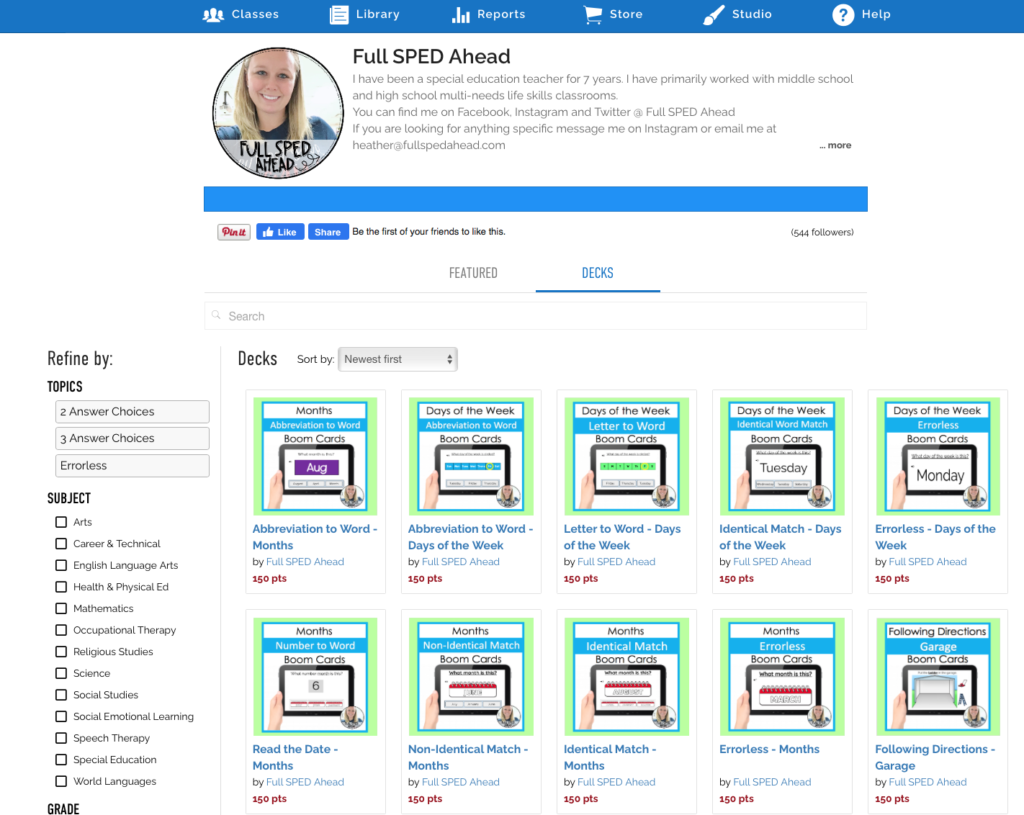
Yes, you can create a free account HERE.
Ultimately, the data generated from Boom Cards can significantly influence teaching methods and student outcomes. Through careful analysis, educators can make informed decisions that enhance classroom experiences. For instance, if a particular deck shows low completion rates, it might prompt a review of the content or the teaching strategy employed.
Free account: With a FREE Boom learning account, you can assign any boom cards that you purchase from TpT through a fast play link. What is a fast play link? A fast play link is a link that is valid for 14 days and directs students to play a “deck” of task cards without signing in. After 14 days, you can create a new link and continue to use. Since student don’t sign in, there is no data tracking.
Premium account: If you would like to collect data and assign decks to specific students, you can sign up for a premium account. There are affordable ($15-$35/year) and you will have the option to add students, assign decks to specific students (easy differentiation), and even see data on how your students are doing.
As a closing thought, I encourage all educators to explore the possibilities that Boom Cards offer. Whether you’re teaching in-person or remotely, these interactive tools can make a significant impact on student engagement and learning outcomes. Embrace the opportunity to innovate in your teaching practice!
The integration of Boom Cards into your teaching repertoire is not just about technology; it’s about enhancing the learning journey for all students. As we move forward in this digital age, utilizing tools like Boom Cards can empower educators to create more engaging and personalized educational experiences.
Note: You can import your Google Classroom so that students can use their google log ins to access Boom Learning, but it won’t post your assignments in Google Classrooms. Simply direct your students to sign into Boom Learning with their Google Classroom login and then they will see the decks that you assigned to them.
First, you will go to the deck in your library, then go to assign. Now you have two options:
1. Select Fast Pin and copy and paste the URL. Fast Pins do expire after 14 days and will not collect progress, but are a great way to practice without needing to sign in! (Works with free accounts)
2. For premium accounts, you can assign the deck to your classroom and select “Hyperplay Link”. You paste this link in your online classroom. Students click on it and sign in to play. From here, a teacher will be able to monitor progress).
Most importantly, you will first select the decks that you want to check progress on and you will see how many cards the students have completed (progress – default only shows students 20 at a time, so decks with more cards will take multiple times to go through). It shows you the amount of time a student spend on a card and the percent they get correct!
For more insights and updates, connect with us on social media:
Instagram | TeachersPayTeachers | Facebook | Boom Learning Library | Pinterest
